
GUBT Portal is the gated iPhone and iPad workspace for authorized customers and dealers who already trade with Chengdu GUBT Industry. It puts parts lookup, reported stock, permission-based business overviews, and cloud inquiry / container drafts in one place — so a plant buyer or dealer sales lead can check what they are allowed to see without turning the relationship into a public mall.
This page is a product intro, not a wear-parts technical article. For how we quote by part number / model match, use the PN / model-match RFQ template. For fitment proof on model-match castings, see fitment proof for model-match wear parts.
What GUBT Portal is (and isn’t)
| It is | It is not |
|---|---|
| A workspace for authorized customers and partners | Public registration or open signup |
| Parts search + reported stock in your account context | A public catalog or shopping cart |
| Business overviews and records you are permitted to see | Live global inventory for everyone |
| Cloud inquiry / container drafts that continue on the web portal | Checkout, buy-now, or automatic order placement |
Access starts with a pre-created account from GUBT. Activation enables that account on the app; it is not a public signup form. What you see — which parts, which stock figures, which orders or invoices — follows the permissions on that account.
Drafts you save in the app sync with the web portal, so you can start on an iPad at the plant and finish on a desktop later. Saving a draft does not place an order, create a formal document, or notify anyone.
Find and check parts
Open Parts to search by reference number, part name, or compatible brand / model match fields. Results can show as a list or a grid, with stock filters and white-background product images where available. Favorites and recent parts stay on-device so repeat lookups are faster.
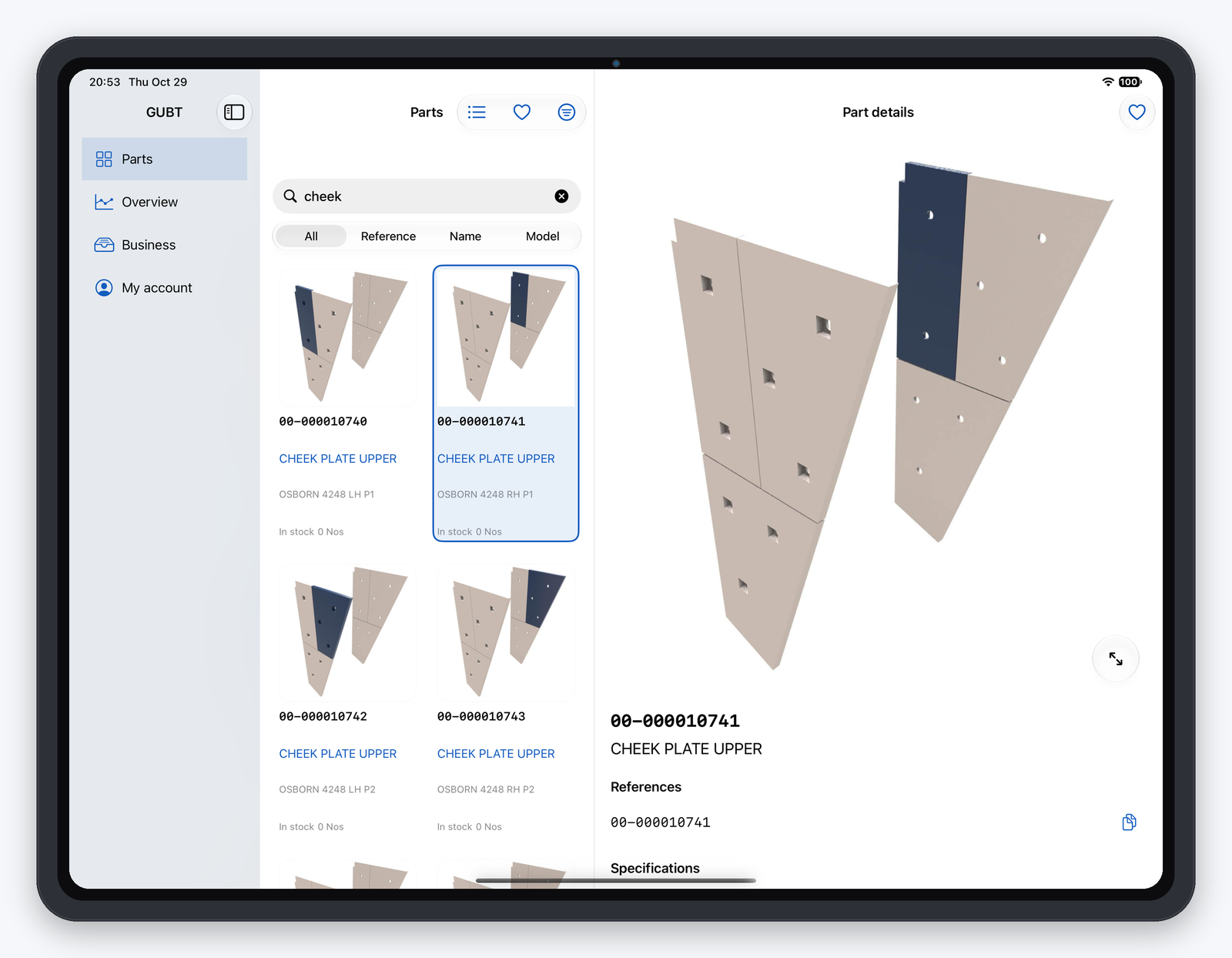
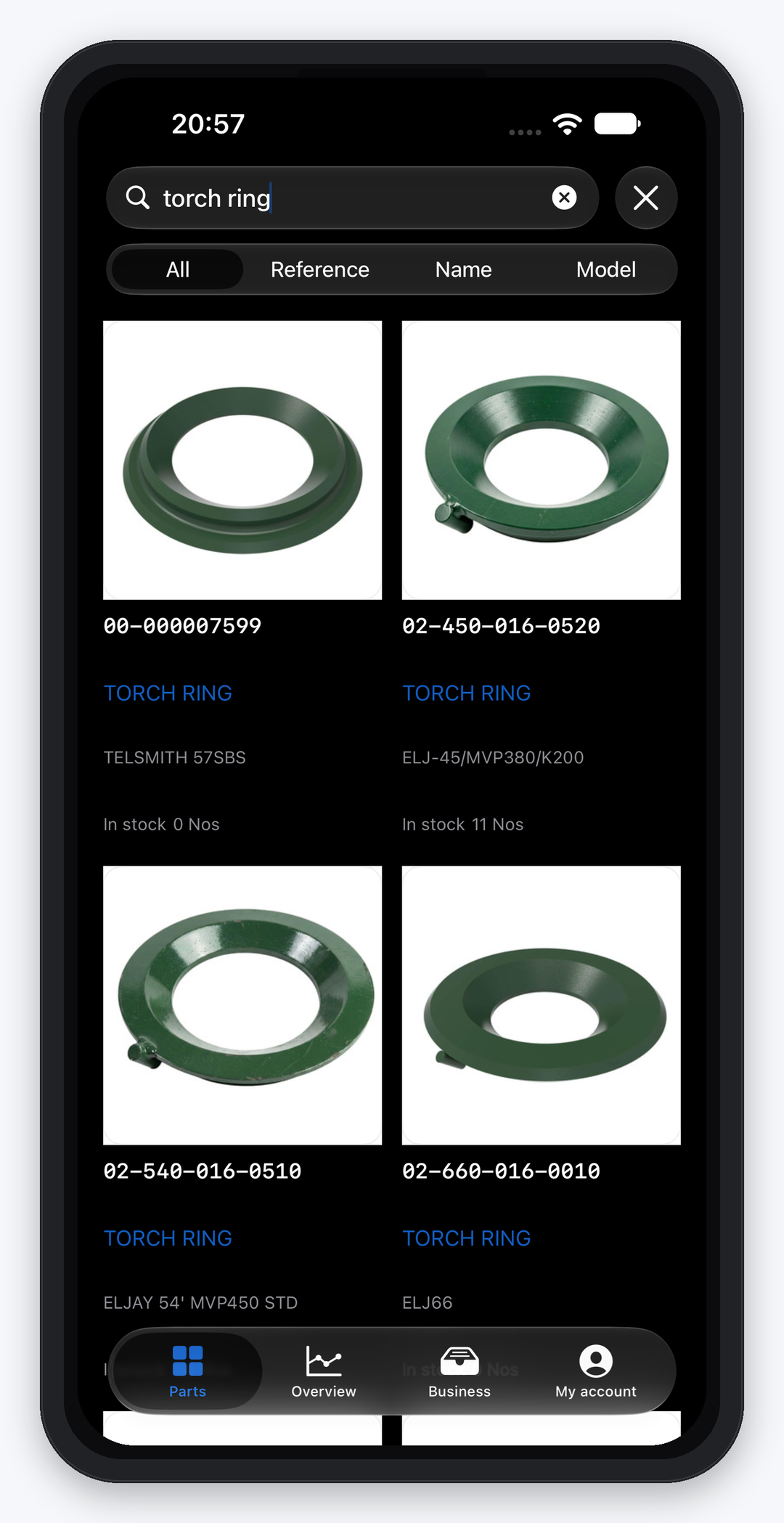
On iPhone, the same Parts flow is touch-first: search, open a part card, read stock and match fields, then jump back to the list. The screens below show torch-ring and mantle lookups in dark mode — typical aftermarket wear families, identified by reference and model match, not by marketing slogans.
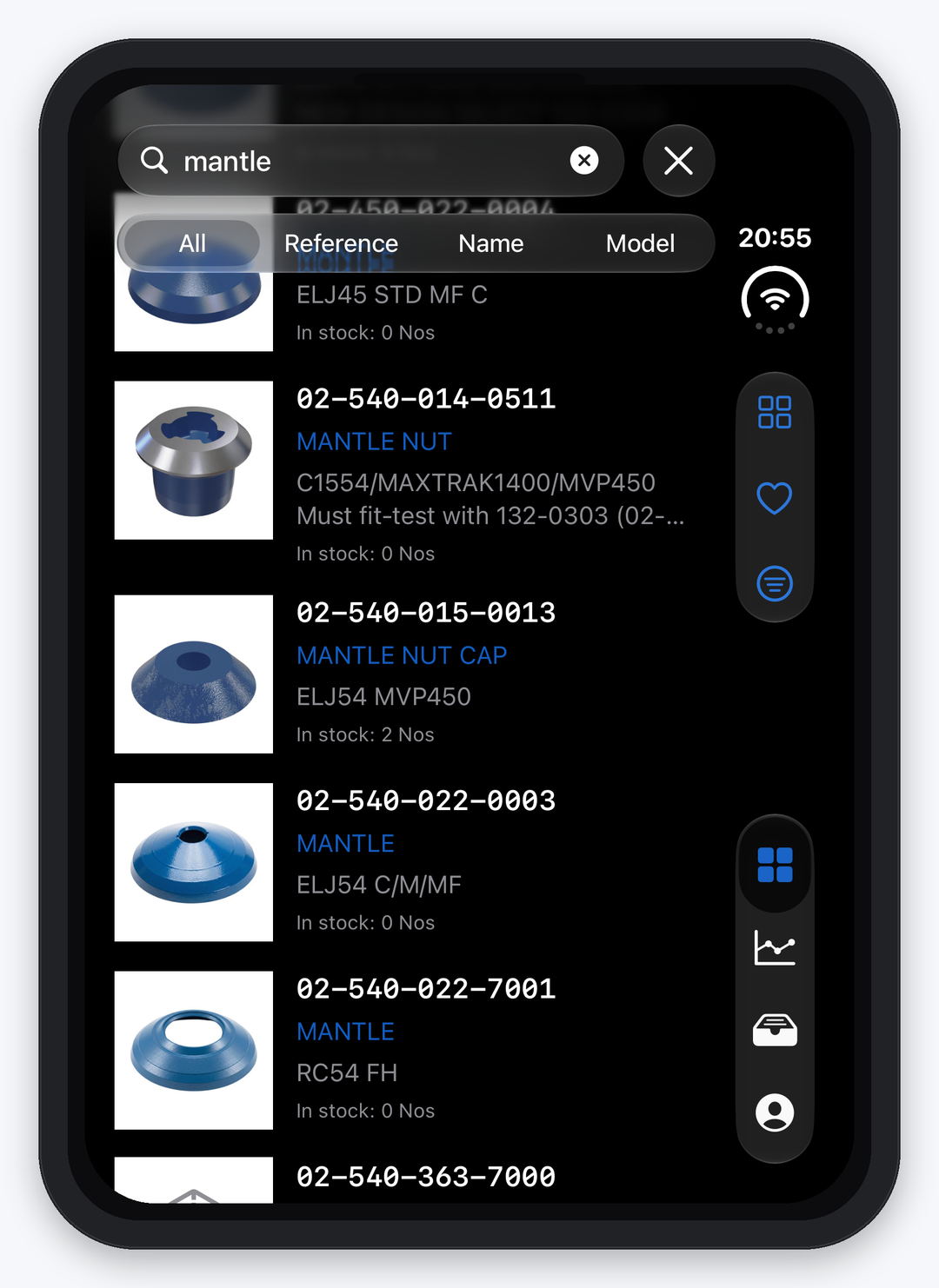
When you need a formal quote or first-article scope, take the reference / model-match identity back to the RFQ template or your GUBT representative. The app helps you find and check; commercial terms still go through your normal channel.
How stock is shown
Stock in GUBT Portal is the reported quantity for your authorized customer context — not a public warehouse feed.
Three rules to keep straight:
- A reported number means the system has a quantity for that part in your permission scope.
- Zero means the reported quantity is zero. It is not the same as “unknown” or “unavailable.”
- Unknown / unavailable stays marked as such when the system has no reliable figure. Do not treat a blank or unknown state as a silent zero.
We never imply live global inventory for the public. If your account cannot see a part or a stock field, that is a permission boundary, not a missing product.
Review your business
Overview summarizes invoices, orders, and outstanding items for the period you select, with charts for monthly invoices and orders and status breakdowns. Related Business records (orders, deliveries, packing, transport, invoices) open only when your account is allowed to see them.
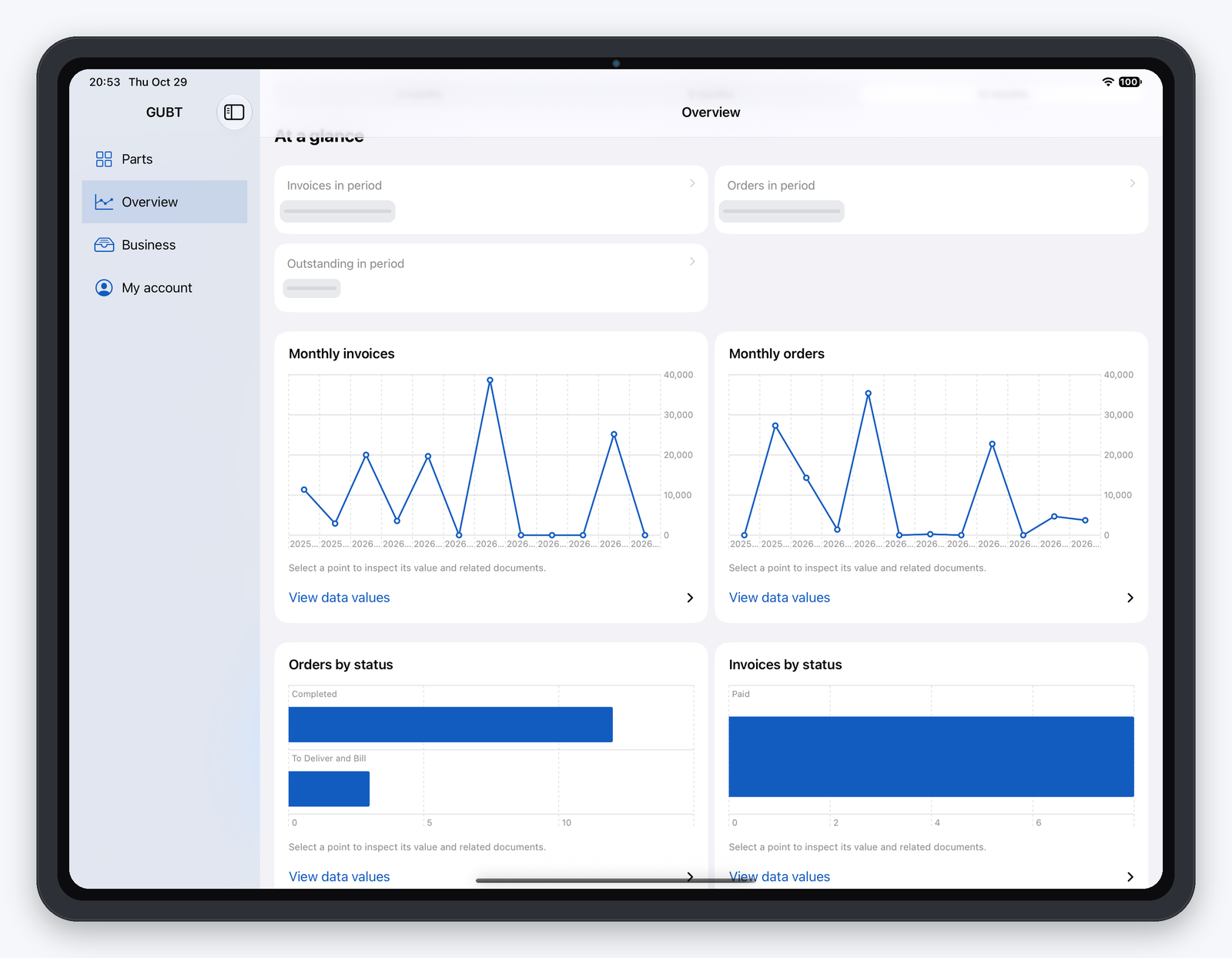
Missing data stays unknown. The app does not invent completeness: if a period has no invoice row, or a status bucket is empty, that is what you see. Period selectors (for example 3 / 6 / 12 months) and multi-currency views follow what your account is configured to show.
Keep request drafts together
Inquiry drafts and container-plan drafts let you park lines with decimal quantities and notes, then resume on another device or on the web portal. Cloud save is for your working copy.
Hard line: saving a draft does not place an order, create a formal document, or notify GUBT or anyone else. When you are ready to commit, use your normal commercial path with your representative — the same discipline as an RFQ pack on the website.
iPhone and iPad
| Device | Layout |
|---|---|
| iPhone | Four main sections (Parts, Overview, Business, My account); list → detail flow |
| iPad | Side-by-side lists and details; more room for draft selection and charts |
| Both | Touch throughout; designed for current iOS / iPadOS (18+) |
The app is built for phones and tablets you already carry on site visits. It is not a substitute for desktop ERP; it is the pocket workspace for authorized partners.
Access and activation
- You already trade with GUBT (dealer or end customer on account).
- Ask your GUBT representative to pre-create / authorize an app account.
- Download GUBT Portal from the App Store.
- Sign in with the credentials you were given; activation enables that existing account.
Visible parts and records = account permissions. If something is missing, contact your rep — do not expect a public self-serve catalog.
FAQ
Who can use GUBT Portal?
Authorized customers and partners with a pre-created GUBT account. It is not open to public shoppers.
Does saving a draft place an order?
No. A saved inquiry or container draft is a working copy only. It does not place an order, create a formal document, or send a notification.
Is zero stock the same as no data?
No. Reported zero means the quantity is zero in your context. Unknown / unavailable means the system has no reliable figure. They are different states.
Is this a public parts shop?
No. There is no public registration, no checkout, and no buy-now flow. GUBT Portal is a gated workspace for authorized accounts.
Where do I download it?
From the Apple App Store: GUBT Portal (iPhone and iPad). Availability follows Apple storefronts where the listing is published — ask your rep if you are unsure whether your region is covered.
Download / next step
- Install GUBT Portal from the App Store.
- Contact GUBT or your existing representative for account access.
- When you need a formal quote, use the part number / model-match RFQ and, where fitment is in question, the fitment proof checklist.
Answer in one line: GUBT Portal is a free iPhone/iPad app for authorized GUBT customers and partners to search parts, read reported stock honestly (zero ≠ unknown), review permission-based business records, and keep cloud drafts that continue on the web — not a public webshop, and saving a draft never places an order.